workshop / neurotecheu / realtime /
Realtime EEG data processing
Unicorn Hybrid Black
The Unicorn Hybrid Black is a good-quality and affordable 8-channel EEG device that is very suited for rapid application development during teaching and hackathons. It comes with its own software (only for Windows) that helps you get started quickly visualizing the EEG signals, and streaming them over LSL or UDP. The Unicorn Recorder application also includes the OSCAR algorithm for real-time data cleaning, which allows both the raw and cleaned data to be streamed.
On the Unicorn Suite Hybrid Black github repository you can find more documentation and instruction videos.
The low-level serial-over-bluetooth Unicorn interface protocol is public, allowing for alternative implementations that are independent from the gtec software. This page for example describes a native Python interface that also allows streaming data to LSL. This page contains a C/C++ applications for interfacing the Unicorn with a (virtual) audio device, allowing it to be used in Audacity, Ableton Live or Touchdesigner.
If you don’t have a windows computer, please pair up during the hackathon with someone that does. The whole experience with the Unicorn Recorder application is just way better, you will get up and running much faster, and the realtime OSCAR cleaning algorithm is very useful. If you read this at a later moment and if you do have your own Unicorn but no Windows laptop, consider buying a refurbished one.
Install the Unicorn software
Please download the installer from the gtec website and install it.
After installation, you have to pair it with the Unicorn device over Bluetooth. There is a recommended USB Bluetooth dongle, but in my experience it works well enough with the builtin bluetooth of various laptops.
Pair device over bluetooth
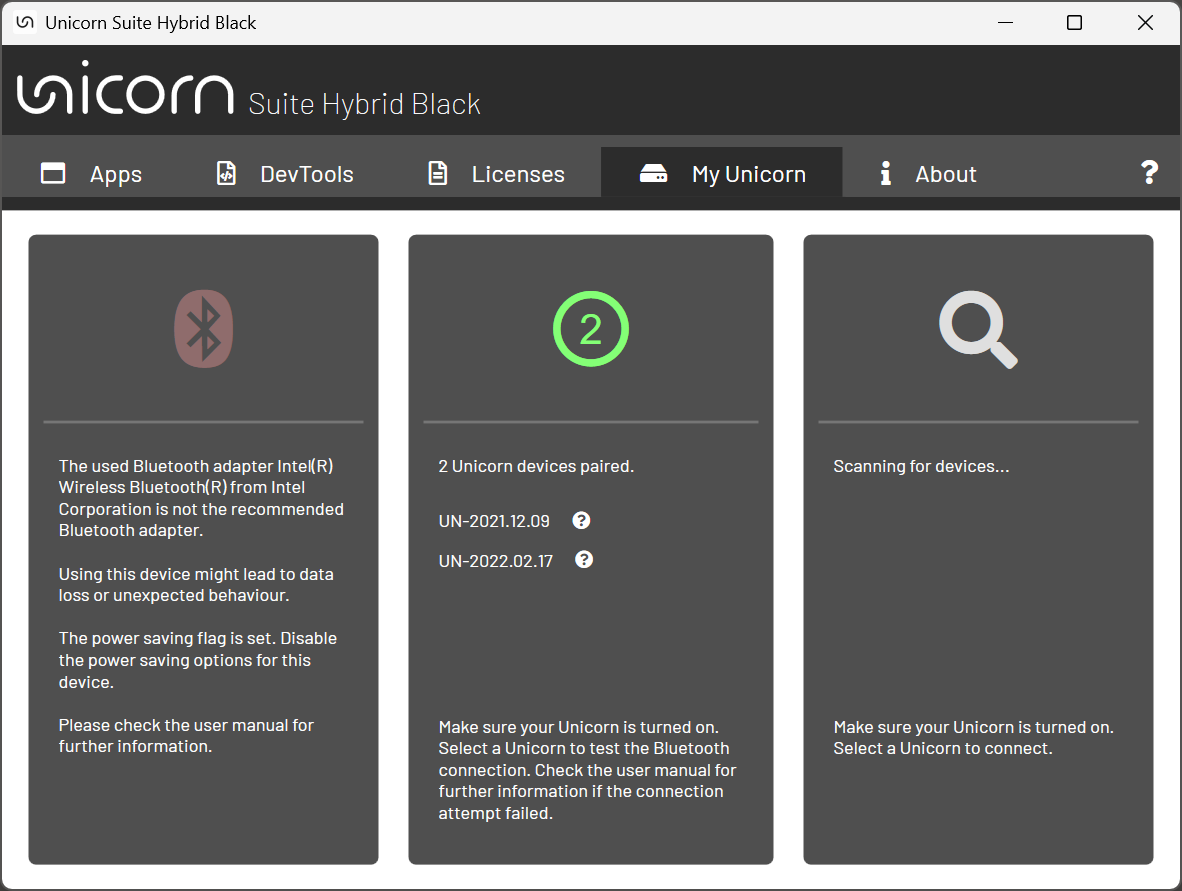
To pair it with a specific Unicorn device, you switch that on and wait for it to appear in the right column. Then you click on it to pair it. A generic Windows pop-up will apear asking whether you want pair that device, please confirm. The Unicorn will then show up in the middle column.
Install applications
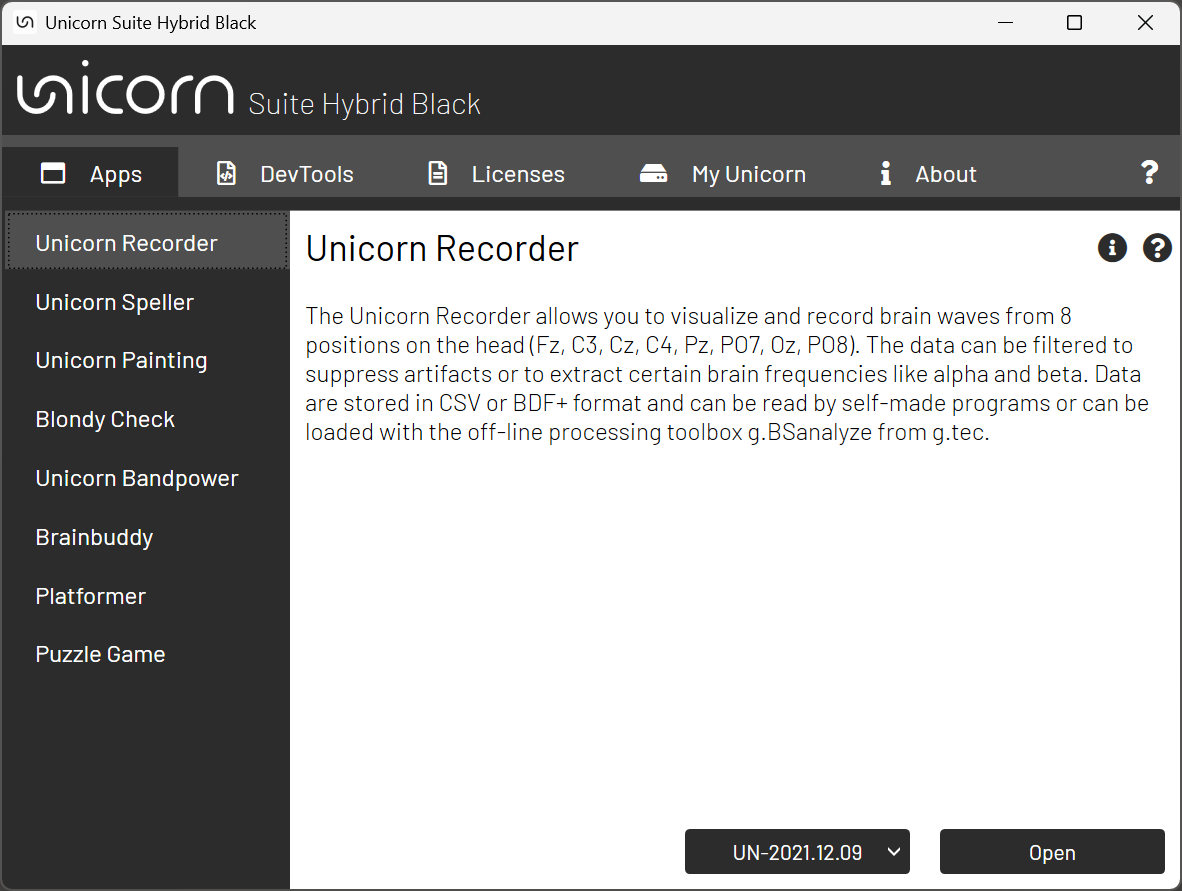
Besides managing the hardware and licenses (more on that below), the Unicorn “Suite” Hybrid Black includes a number of specific apps that you can install separately. The relevant ones that you should install are the recorder and the bandpower app.
The recorder app allows visualization of the data without or with filters, implements OSCAR for realtime denoising, and allows data to be sent over LSL.
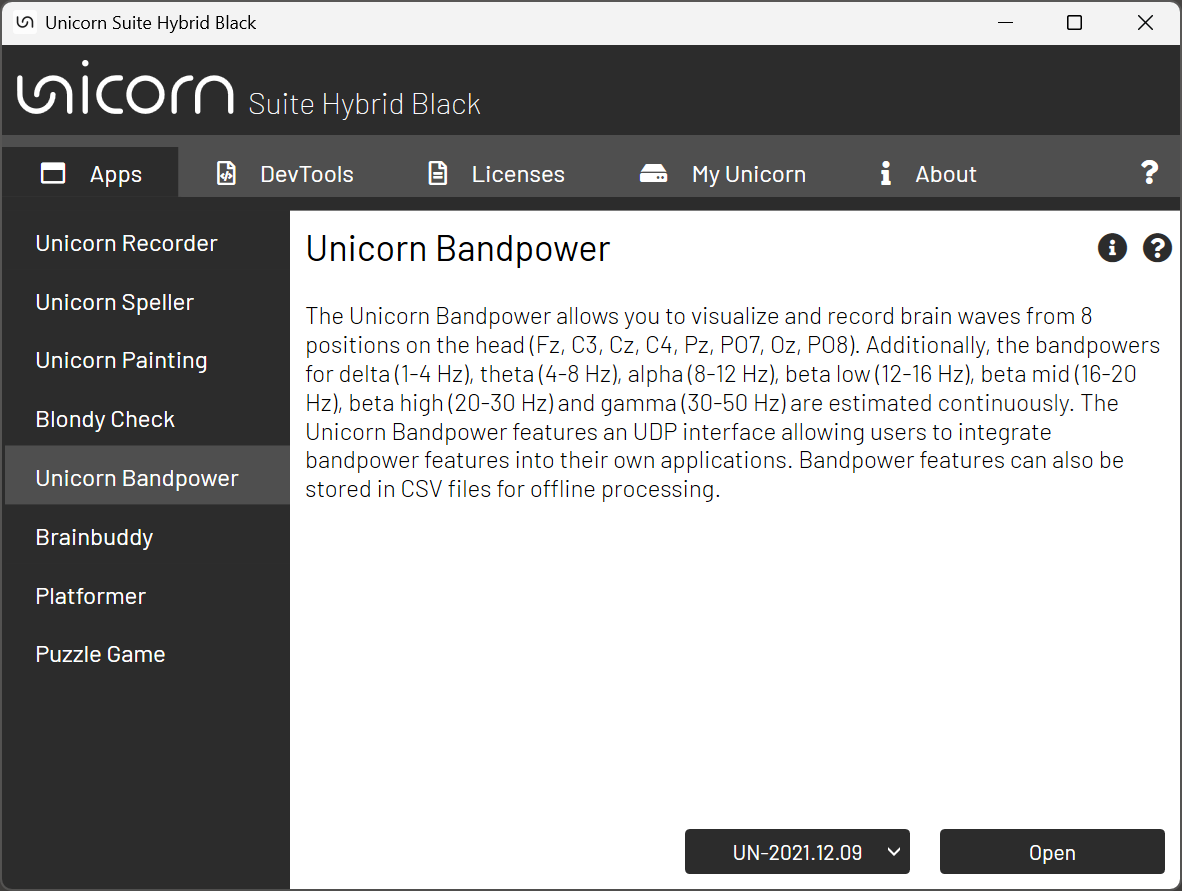
The bandpower app computes spectral power in specific bands, like alpha, beta, etc.
There are also a number of complete BCI applications that you can try, like the puzzle game which implements some sort of a visual steady-state evoked potential (SSVEP) interface.)
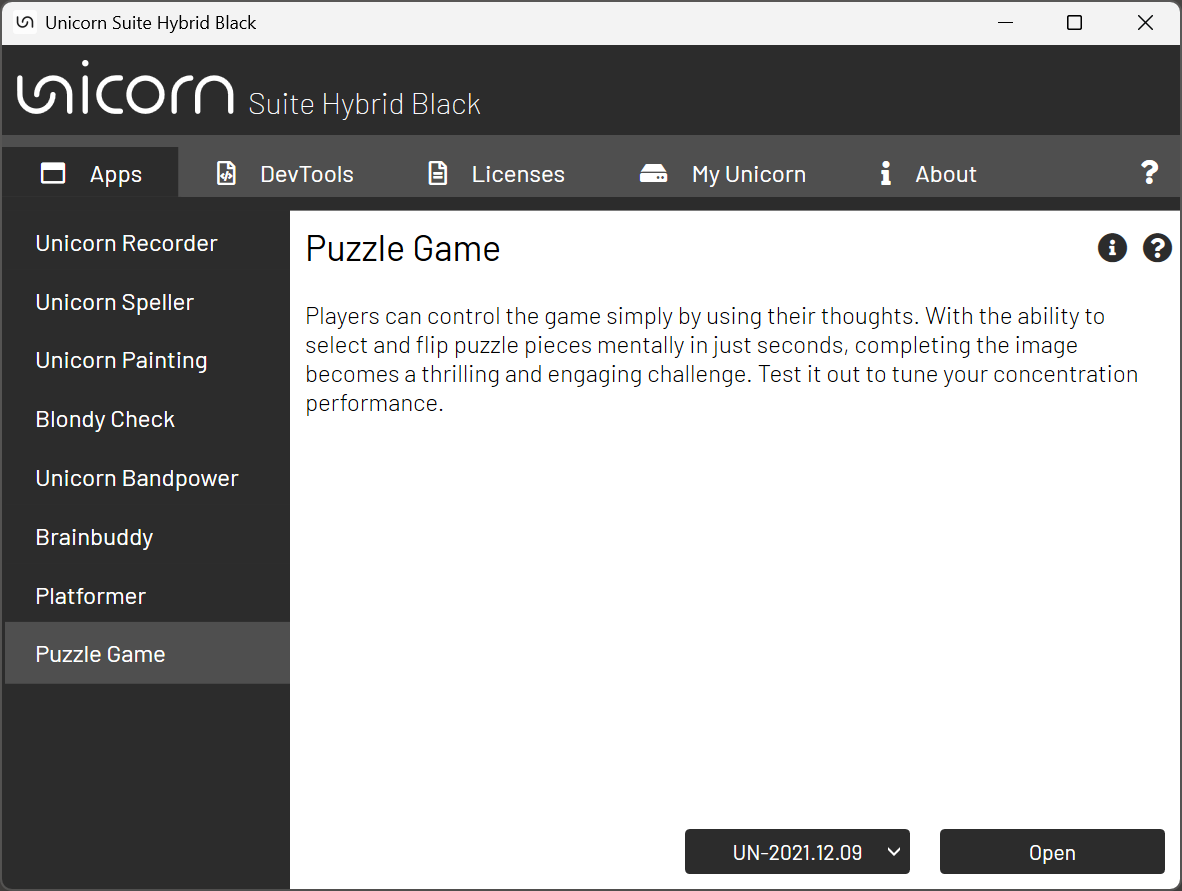
Explore APIs
The Unicorn Suite Hybrid Black also includes a number of development tools and application programming interfaces (APIs). If you go through them and download and install them on your computer, you will see that a few of them are free to use, whereas others are licensed. The C/C++ and Net API are free, but the Python and Simulink interfaces require you to get a (paid) license.
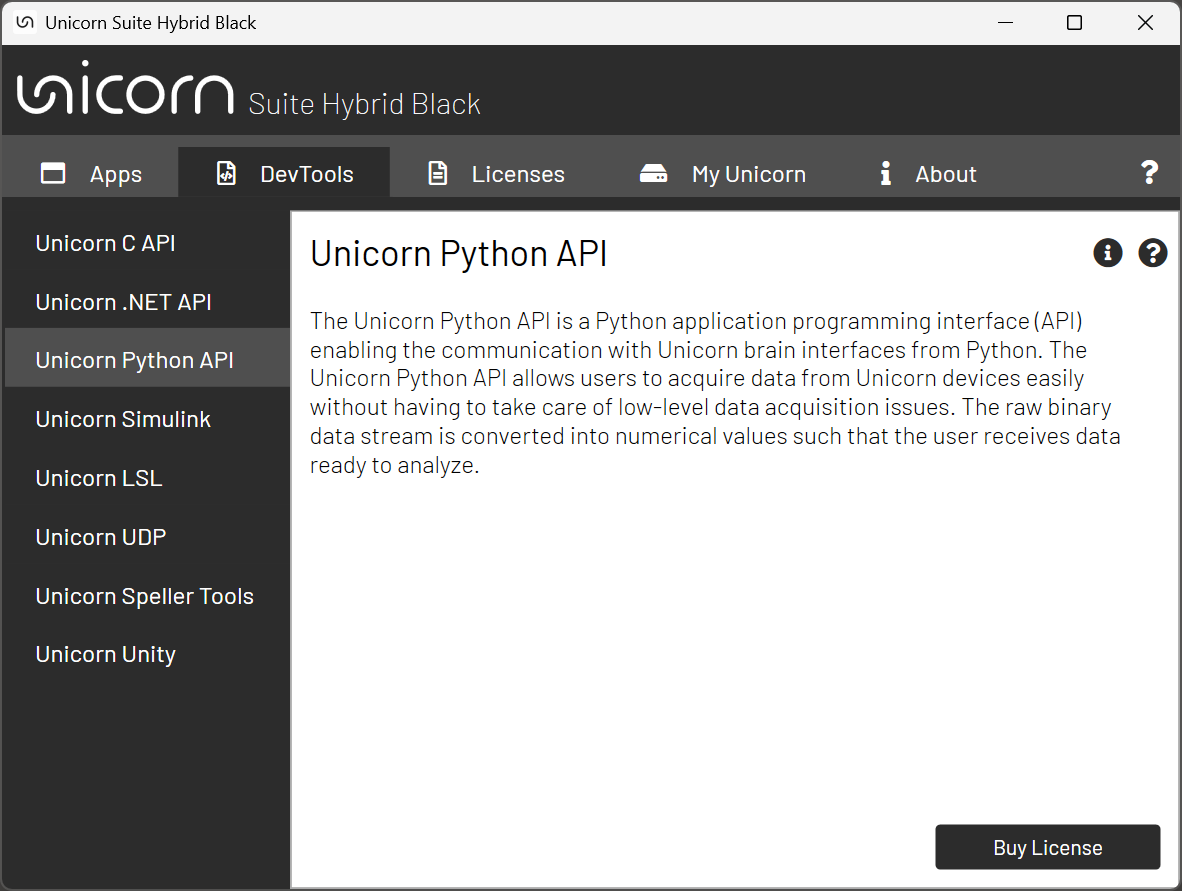
Luckily these APIs are not needed for this hackathon, since we will be using the Lab Streaming Layer (LSL) interface.
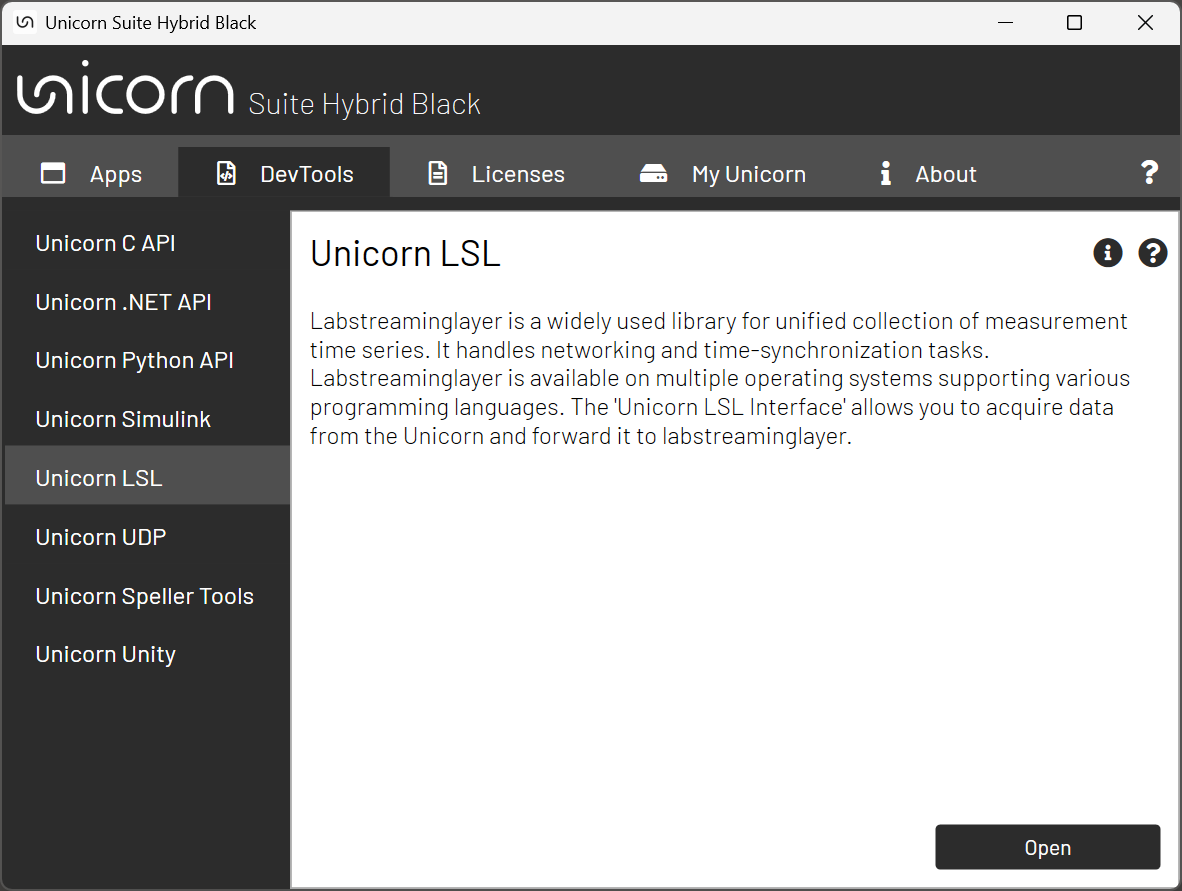
There is also a separate “UnicornLSL.exe” application that you can use (see below), but even that is not needed. The Unicorn Recorder application mentioned above can be used to stream the data over LSL and UDP.
Download and install FieldTrip
This requires that you already have MATLAB installed. Follow the instructions in the offline section to download and install FieldTrip, and to add it properly to your path.
Download and install Python
Follow online instructions elsewhere on the internet to install Python on your computer. Please ensure that you are able to create virtual environments for installing specific software (and their dependencies), either using Anaconda or Miniconda, or using virtualenv.
Using LSL with MATLAB
Follow the installation instructions on the LSL website or documentation.
Transmitting markers
% instantiate the library
disp('Loading library...');
lib = lsl_loadlib();
disp(lsl_library_version(lib));

nchan = 1;
fsample = 0; % required for irregular streams
type = 'cf_string'; % can also be cf_int32 or cf_float32

% make a new stream outlet
disp('Creating a new streaminfo...');
info = lsl_streaminfo(lib, 'My marker stream', 'Marker', nchan, fsample, type, 'yourname');

disp('Opening an outlet...');
outlet = lsl_outlet(info);

%% %%%%%%%%%%%%%%%%%%%%%%%%%%%%%%%%%%%%%%%%%%%%%%%%%%%%%%%%%%%%%%%%%%%%

% send markers into the outlet
disp('Now transmitting markers...');

% markers = {1, 2, 3, 4, 5, 6, 7, 8, 9, 10};
markers = {'1', '2', '3', '4', '5', '6', '7', '8', '9', '10'};
% markers = {'left_button', 'right_button', 'visual_stimulus', 'auditory_stimulus'};

while true
  pause(rand()*1);
  % pick a random marker
  thismarker = markers{randi(length(markers))};
  fprintf('now sending %s\n', thismarker);
  outlet.push_sample({thismarker});   % note that the string is wrapped into a cell-array
end
Transmitting EEG data
% instantiate the library
disp('Loading library...');
lib = lsl_loadlib();
disp(lsl_library_version(lib));

nchan = 8;
fsample = 250;
type = 'cf_float32'; % can also be cf_int32 or cf_string, see https://labstreaminglayer.readthedocs.io/projects/liblsl/ref/enums.html

% make a new stream outlet
disp('Creating a new streaminfo...');
info = lsl_streaminfo(lib, 'My EEG stream', 'EEG', nchan, fsample, type, 'yourname');

disp('Opening an outlet...');
outlet = lsl_outlet(info);

%% %%%%%%%%%%%%%%%%%%%%%%%%%%%%%%%%%%%%%%%%%%%%%%%%%%%%%%%%%%%%%%%%%%%%

sample = 1;

% send data into the outlet, sample by sample
disp('Now transmitting data...');
while true
  outlet.push_sample(randn(nchan, 1));
  fprintf('Wrote sample %d\n', sample);
  sample = sample + 1;
  pause(1/fsample);
end
Receiving markers
To be done.
Receiving EEG data
To be done.
Using LSL with Python
Follow the installation instructions on the LSL website or documentation.
Transmitting markers
import pylsl
import time

# on my M3 MacBook I had to recompile the LSL library and then this is needed
# export DYLD_LIBRARY_PATH=/Users/roboos/matlab/liblsl-maca64/bin

time.sleep(3)  # wait a bit to make sure the LSL library is ready

# first resolve a marker stream on the lab network
print("looking for an EEG data stream...")
streams = pylsl.resolve_byprop('type', 'EEG')
print(streams)

inlets = []
if len(streams)==0:
    print("there are no EEG data streams")
else:
    for stream in streams:
        print(stream)
        # create a new inlet to read from the stream
        inlets.append(pylsl.StreamInlet(stream))

while True:
    for stream, inlet in zip(streams,inlets):
        sample, timestamp = inlet.pull_sample()
        print(f"received {sample} from {stream.name()} on {stream.hostname()}")
Transmitting EEG data
import pylsl
import time
import random

# on my M3 MacBook I had to recompile the LSL library and then this is needed
# export DYLD_LIBRARY_PATH=/Users/roboos/matlab/liblsl-maca64/bin

time.sleep(3)  # wait a bit to make sure the LSL library is ready

nchan = 8
fsample = 250

info = pylsl.StreamInfo(
    name='My EEG stream',
    type='EEG',
    channel_count=nchan,
    nominal_srate=fsample,
    channel_format=pylsl.cf_float32,
    source_id=None,
)

# Create a new outlet
outlet = pylsl.StreamOutlet(info)

# Print the stream info
print("Now publishing stream:", info.name(), info.type(), info.channel_count(), "channels at", info.nominal_srate(), "Hz")

# Create a data array for one sample, nchan channels
slice = [0.0] * nchan
sample = 0

# Continuously send data
while True:
    # Make a slice of random data
    for i in range(nchan):
        slice[i] = round(random.random(), 2)
    slice[0] = sample
    sample += 1

    # Push the sample to the outlet
    outlet.push_sample(slice)
    # Print the sample for debugging
    print("Pushed sample:", slice)
    # Sleep for a short duration to simulate real-time data acquisition
    time.sleep(1.0/fsample)  # Adjust the sleep duration as needed
Receiving markers
import pylsl
import time

# on my M3 MacBook I had to recompile the LSL library and then this is needed
# export DYLD_LIBRARY_PATH=/Users/roboos/matlab/liblsl-maca64/bin

time.sleep(3)  # wait a bit to make sure the LSL library is ready

# first resolve a marker stream on the lab network
print("looking for a marker stream...")
streams = pylsl.resolve_byprop('type', 'Markers')
print(streams)

inlets = []
if len(streams)==0:
    print("there are no marker streams")
else:
    for stream in streams:
        print(stream)
        # create a new inlet to read from the stream
        inlets.append(pylsl.StreamInlet(stream))

while True:
    for stream, inlet in zip(streams,inlets):
        sample, timestamp = inlet.pull_sample()
        print(f"received {sample[0]} from {stream.name()} on {stream.hostname()}")
Receiving EEG data
import pylsl
import time

# on my M3 MacBook I had to recompile the LSL library and then this is needed
# export DYLD_LIBRARY_PATH=/Users/roboos/matlab/liblsl-maca64/bin

time.sleep(3)  # wait a bit to make sure the LSL library is ready

# first resolve a marker stream on the lab network
print("looking for a marker stream...")
streams = pylsl.resolve_byprop('type', 'Markers')
print(streams)

inlets = []
if len(streams)==0:
    print("there are no marker streams")
else:
    for stream in streams:
        print(stream)
        # create a new inlet to read from the stream
        inlets.append(pylsl.StreamInlet(stream))

while True:
    for stream, inlet in zip(streams,inlets):
        sample, timestamp = inlet.pull_sample()
        print(f"received {sample[0]} from {stream.name()} on {stream.hostname()}")
Plotting an EEG data stream
With some modifications to the MATLAB code above, we can visualize the data stream that we are receiving.
TODO: some code to be added here
Filtering an EEG data stream
An important difference between filtering data in real-time versus reading continuous data in memory and then filtering it, ios that real-time data arrives in small blocks. First of al, we cannot use a two-pass filter. Furthermore, we don’t want filter edge artifacts and hence have to maintain the filter state between the blocks. This can be achieved with the ft_preproc_online_filter_init and the ft_preproc_online_filter_apply low-level functions from the FieldTrip preproc module (see also this architecture diagram).